

With this step-by-step guide, you'll learn how to easily connect your Airtable base to Stripe, enabling seamless invoicing and payment tracking for your customers. Follow along, and you'll be able to automate your financial workflows without the need for external tools or technical expertise.
Airtable Database Set up for Automation
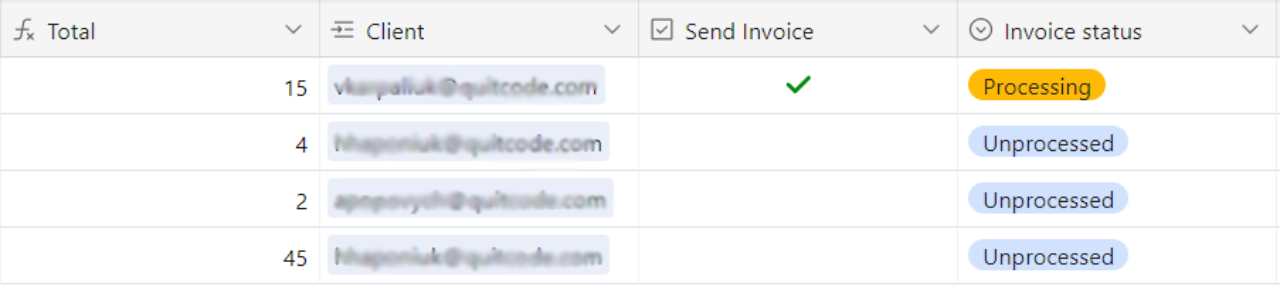
Airtable sets up a database with the tables necessary for data processing. It works as a single source of truth for products, customers, and orders. The key tables we recommend include:
- Inventory Items
- Order Entry
- Orders (the main table with invoices)
- Clients (information about customers)
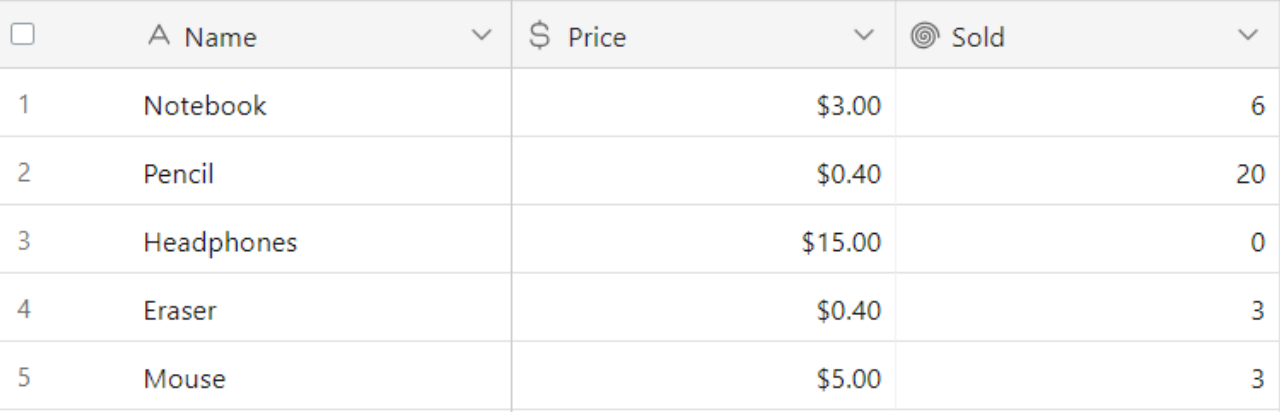
Inventory items
How Does Automation Work?
Step 1: Airtable Automation
First, we set up the automation directly in Airtable. To kick things off, we need a field to act as a trigger. Let's use a Checkbox field.
- Trigger type: "When record matches conditions"
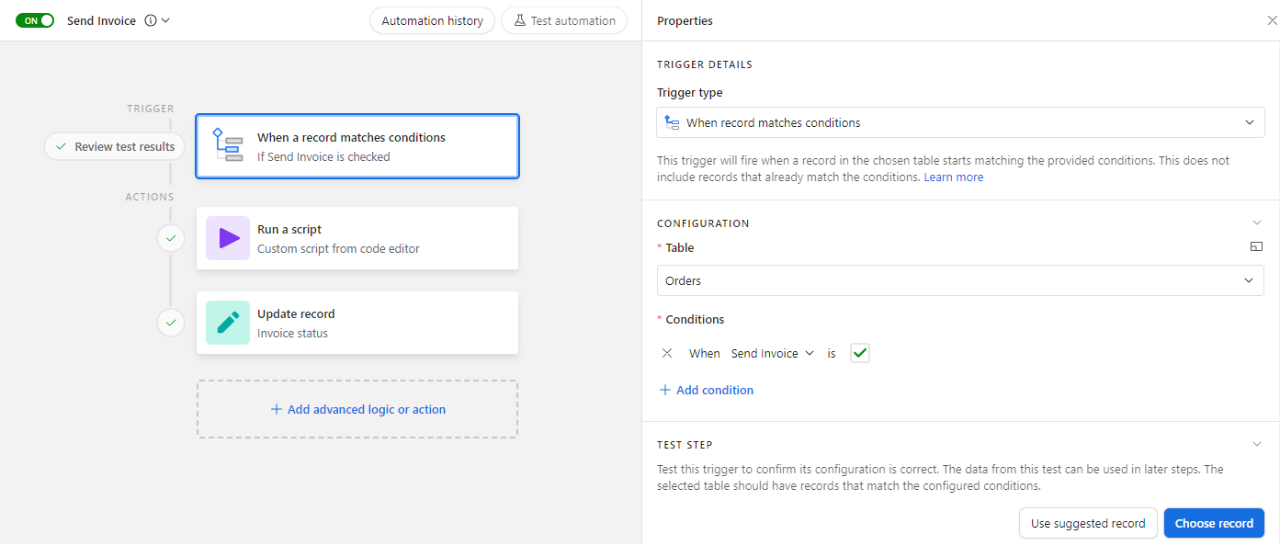
Automation trigger
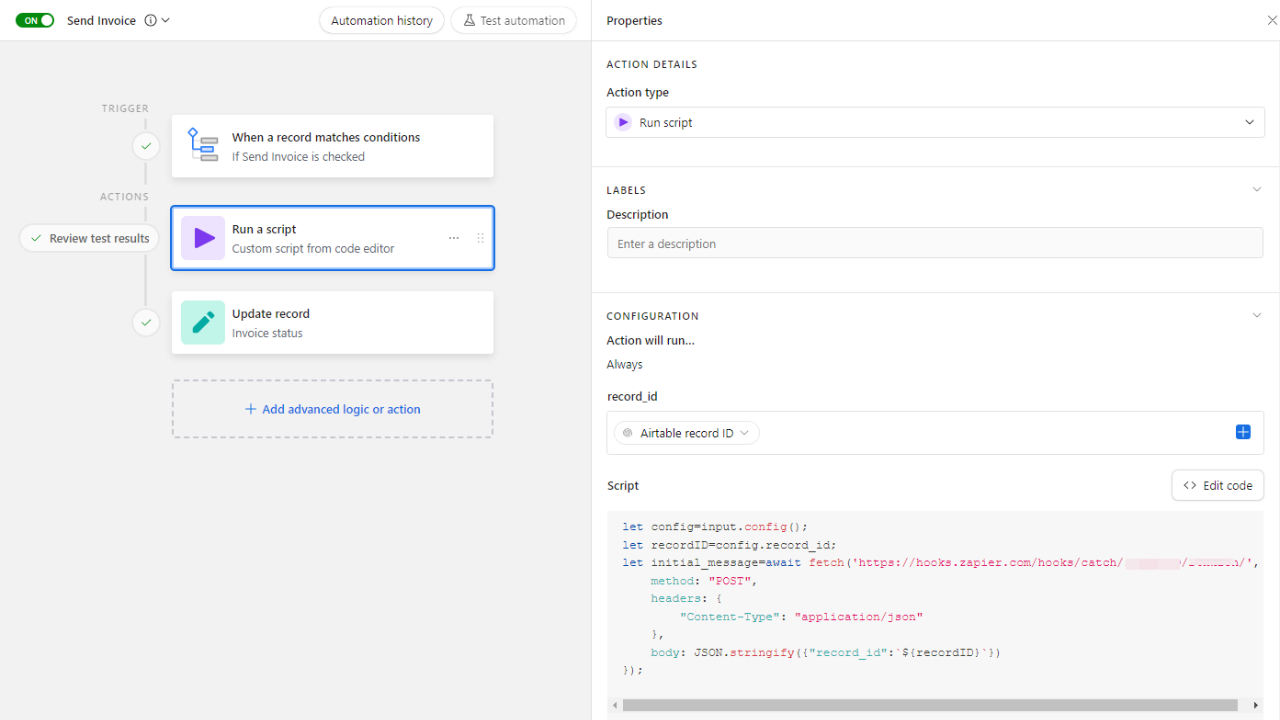
We'll use a script module to send the record ID to Zapier. When the checkbox is checked, the automation starts in Airtable and sends the record ID to Zapier, updating the payment status to "Processing."
let config = input.config();
let recordID = config.record_id;
let initial_message = await
fetch('https://hooks.zapier.com/hooks/catch/18924509/26xxxxx/', {
method: "POST",
headers: { "Content-Type": "application/json" },
body: JSON.stringify({ "record_id": recordID })
});
Step 2: Zapier Automation
- In Zapier, create a webhook to receive data from Airtable.
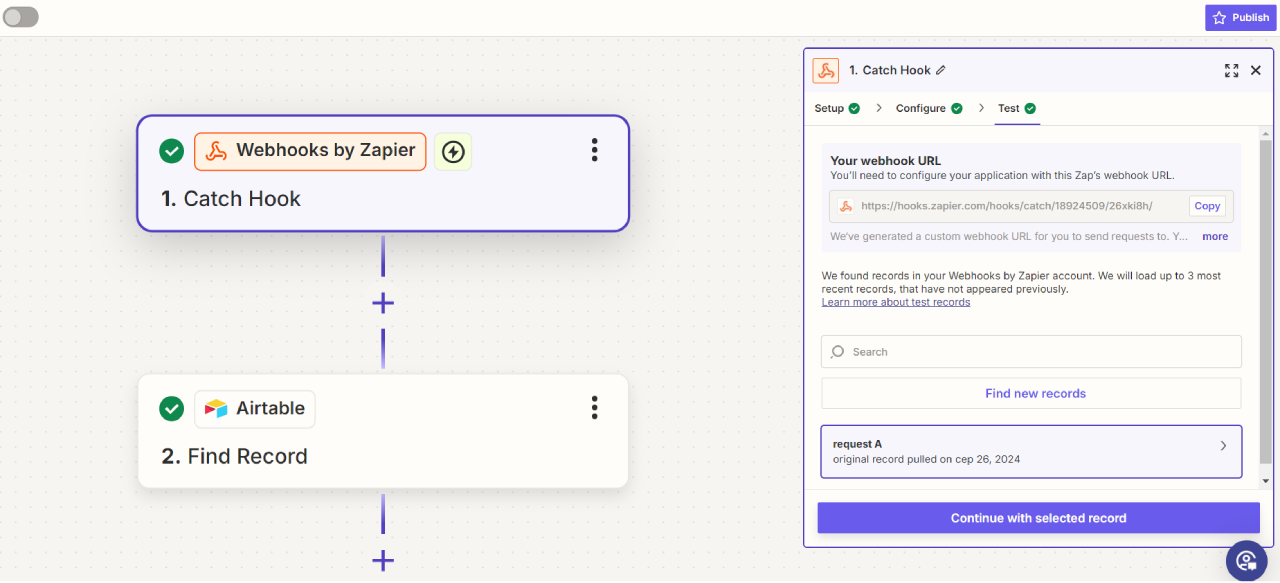
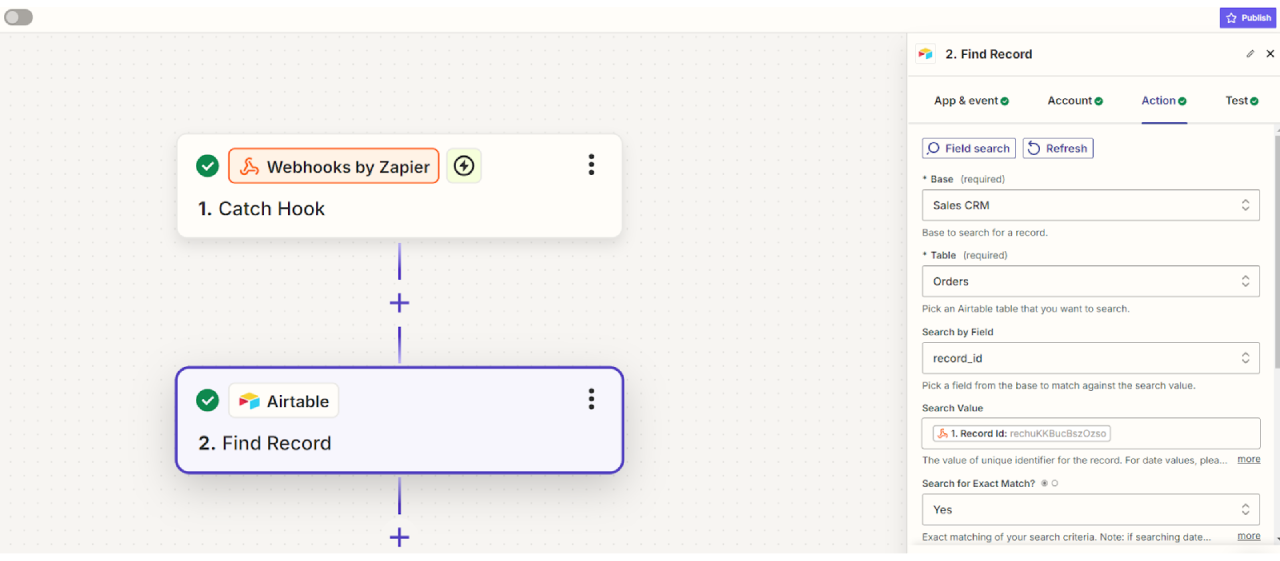
- Set up the next step to retrieve data for a specific order. Choose the database and table, then provide the record ID from the previous step.
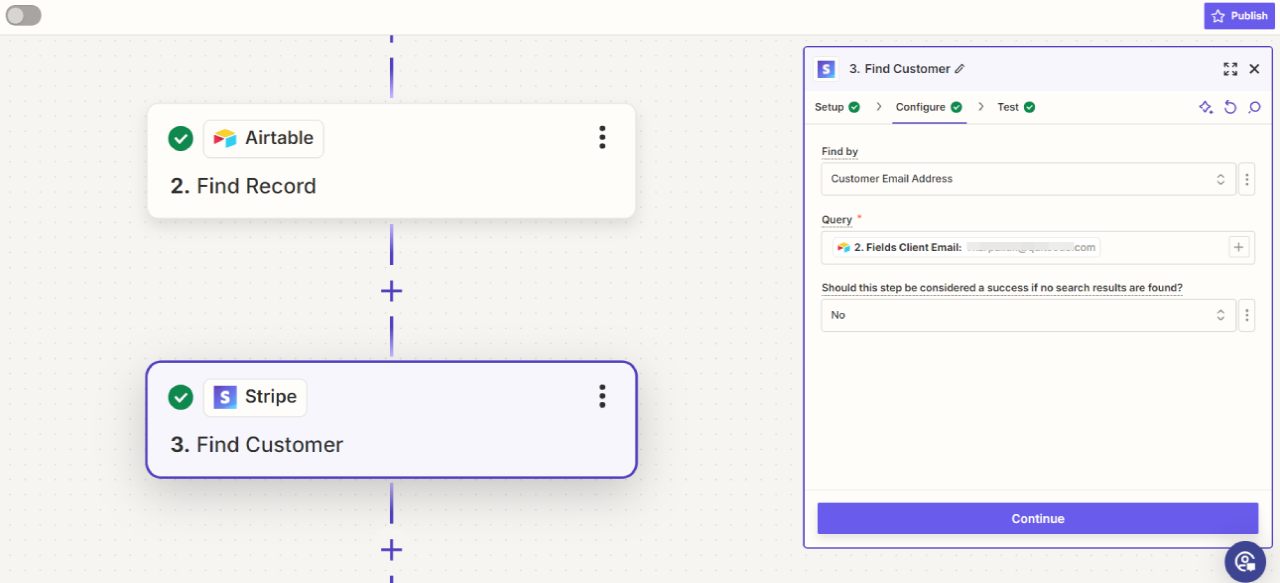
- Use the data to find a client in Stripe based on the email address in the database.
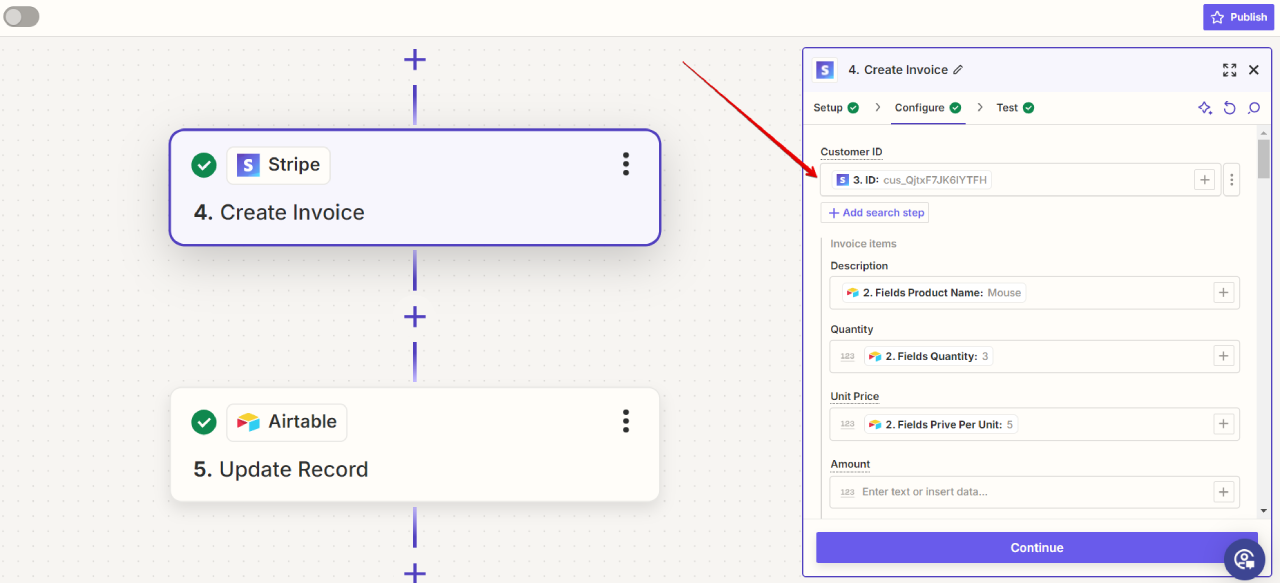
- Create an invoice in Stripe using the customer ID from the previous step. Note: Stripe requires prices to be in cents, so in Airtable, we've added a column with a formula to convert prices from dollars to cents.
- Set Payment collection to Request Payment and specify the payment deadline for the invoice.
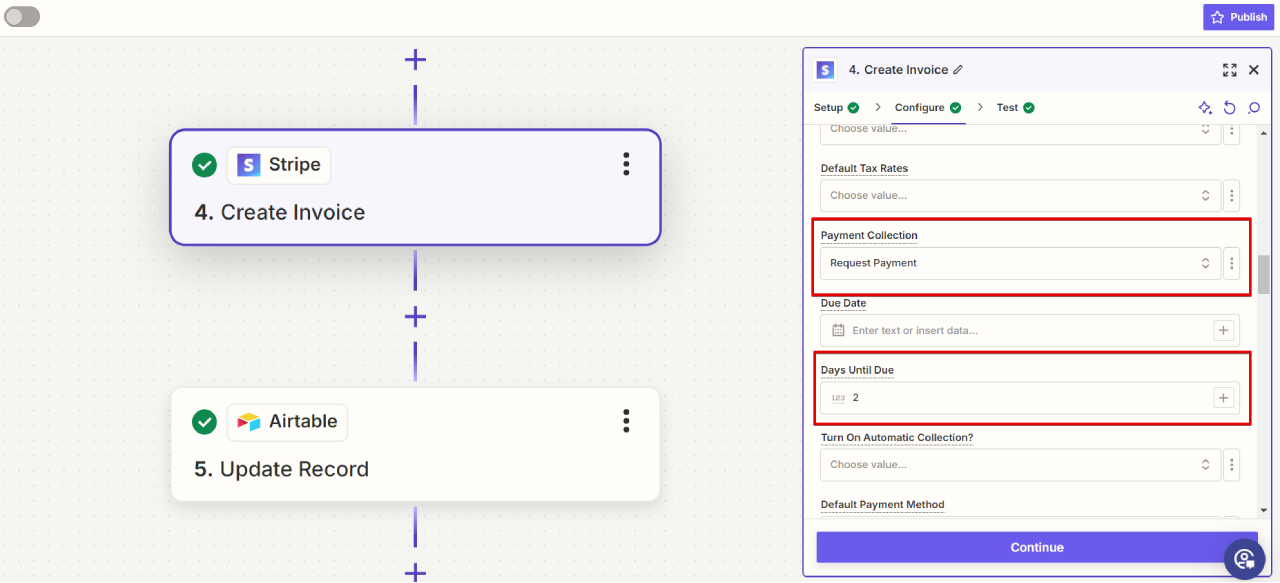
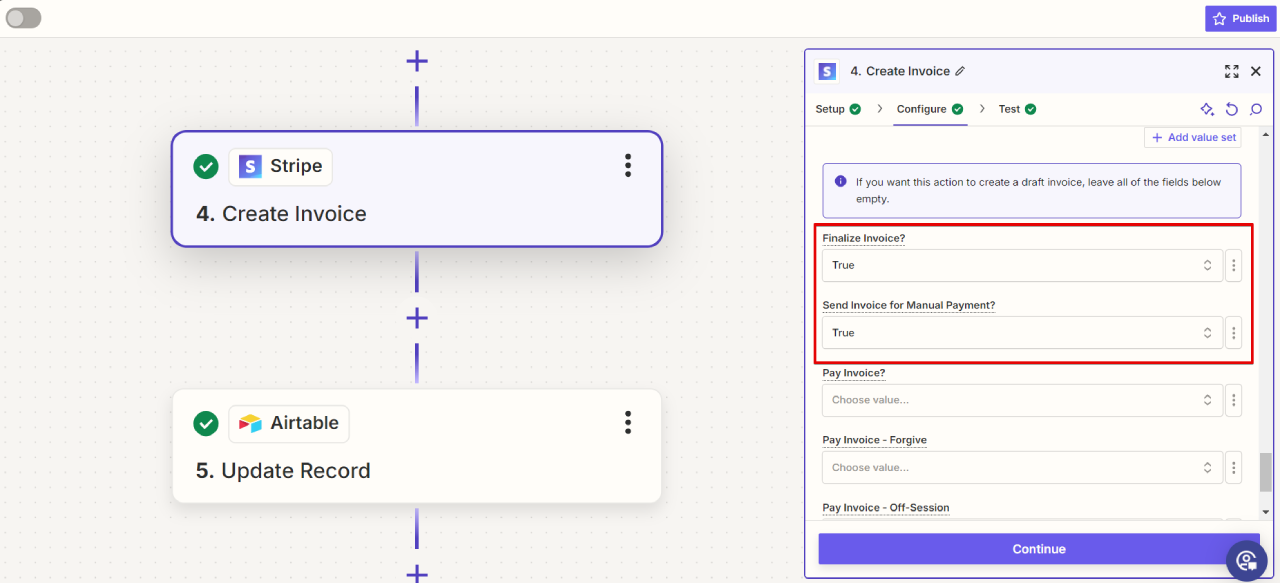
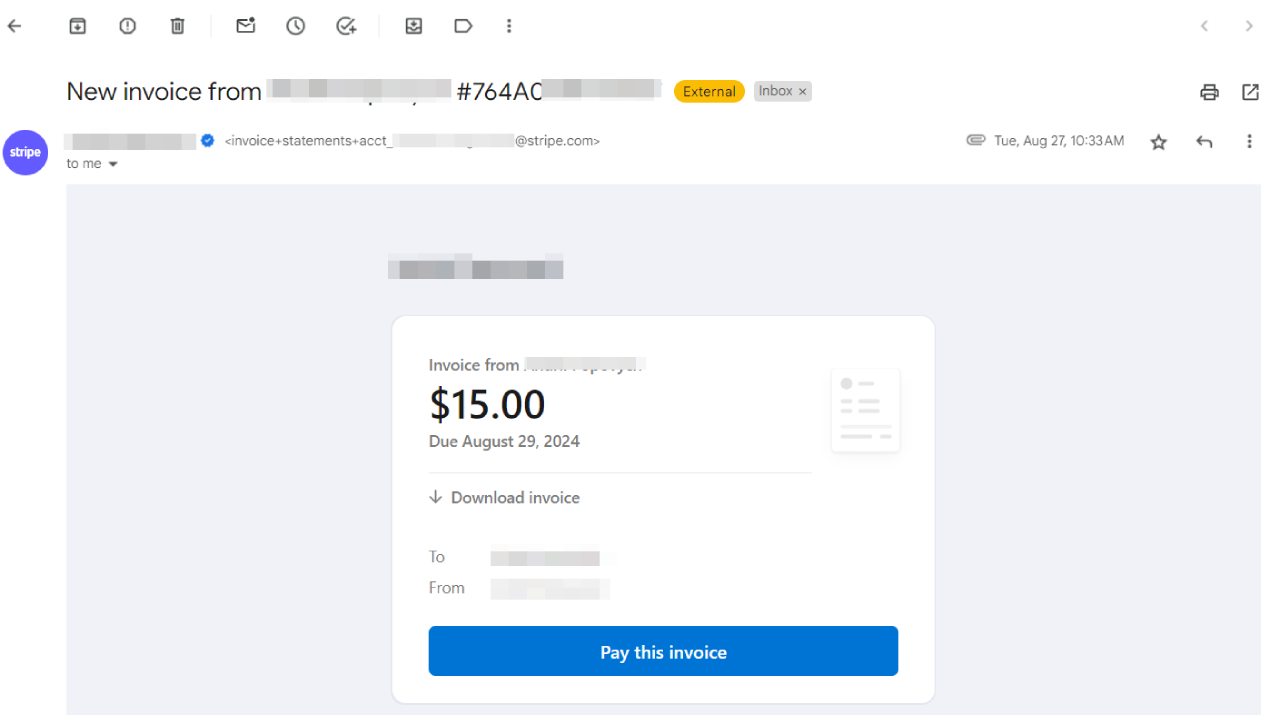
- Set Finalize Invoice to True and Send Invoice for Manual Payment to True.
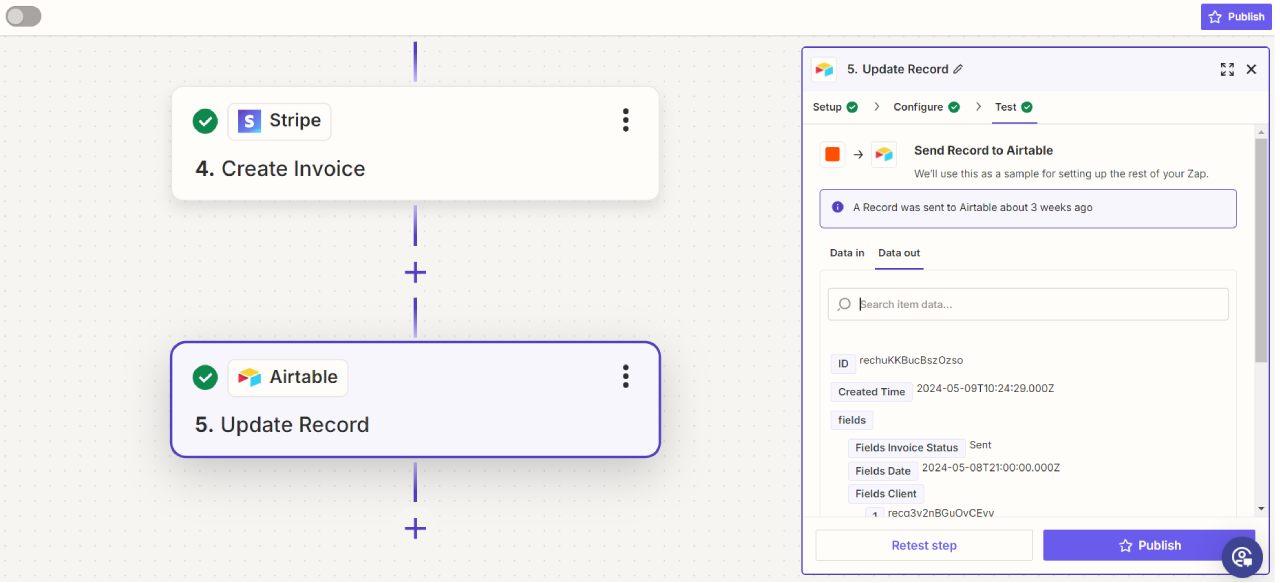
- Automatically update the order status to "Sent" using a final automation step.

 11/04/2025

